Samsung Galaxy Battery Draining Fast? 15 Proven Fixes That Actually Work
Is your Samsung Galaxy battery draining unusually fast? Learn Samsung-specific settings, app optimizations, and hardware checks to restore your battery life to normal.
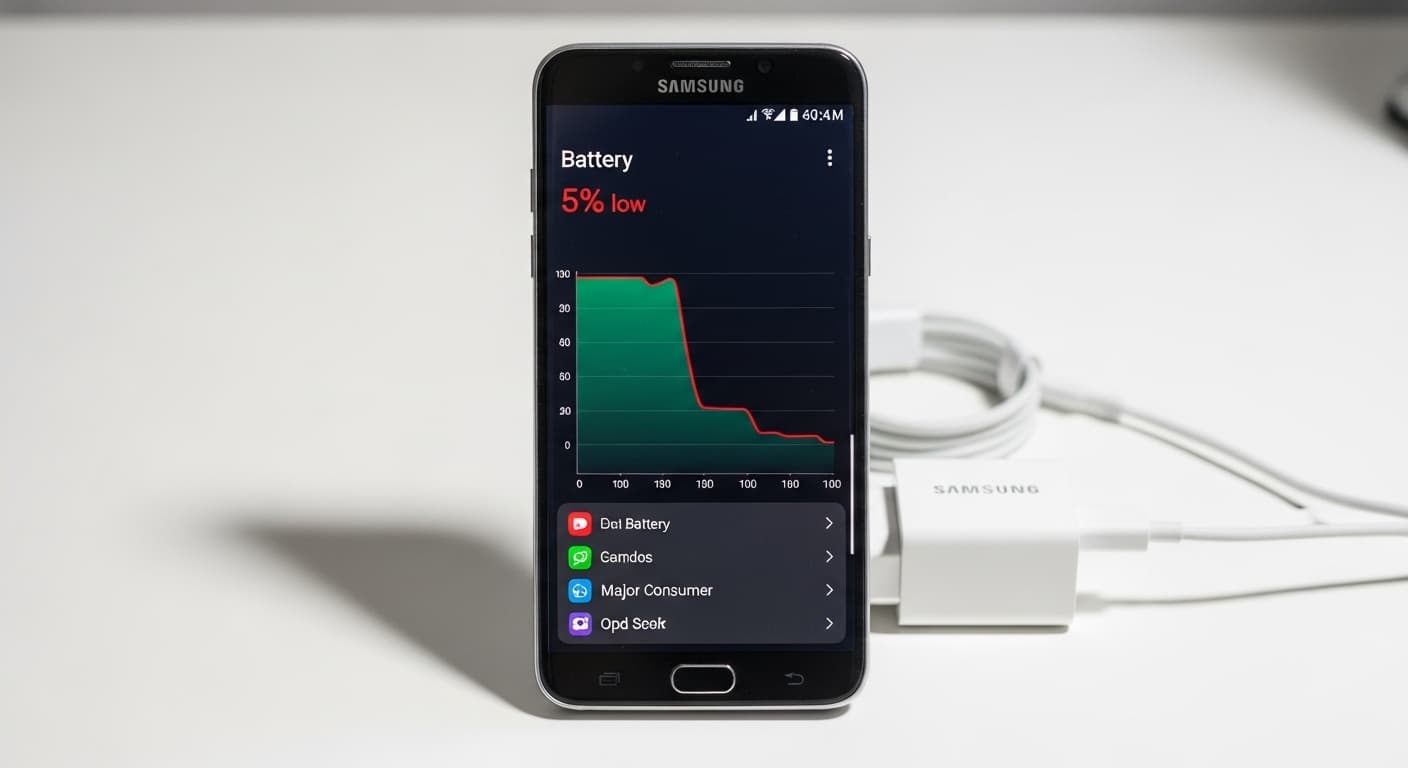
Samsung Galaxy phones are known for their powerful features, but those features can drain battery quickly if not optimized properly. Whether you have a Galaxy S series, A series, or Note, this guide covers Samsung-specific solutions to dramatically improve your battery life. We'll go beyond generic Android tips to focus on One UI settings that make a real difference.
Diagnosing Your Battery Drain
Before applying fixes, identify what's actually draining your battery using Samsung's built-in tools.
1Check Battery Usage Statistics
Samsung provides detailed battery analytics in Settings.
- Go to Settings > Battery and device care > Battery
- Tap "View details" to see battery usage by app
- Check "Usage since last full charge" for accurate data
- Look for apps using more than 10% - these are your main drains
- Note screen-on time vs. background usage
- Compare your screen-on time to Samsung's advertised specs
2Identify Abnormal Battery Behavior
Recognize patterns that indicate problems beyond normal usage.
- Battery drops significantly while phone is idle/sleeping
- Phone gets warm even when not in use
- Battery percentage jumps (80% to 60% suddenly)
- Battery drains faster after a software update
- Charging takes much longer than before
- Battery health shows below 80% capacity
Samsung One UI Power Saving Features
One UI has powerful battery management features that many users don't know about.
Adaptive Battery Settings
- Settings > Battery > Background usage limits
- Enable "Put unused apps to sleep" automatically
- Add problem apps to "Sleeping apps" list manually
- Use "Deep sleeping apps" for apps you rarely use
- Never sleeping apps: Only add essential apps like messaging
- Adaptive battery learns your usage patterns over 1-2 weeks
Power Saving Mode Configuration
- Settings > Battery > Power saving
- Customize which features to limit
- Reduce CPU speed to 70% for minimal performance impact
- Limit apps and Home screen for maximum savings
- Turn off Always On Display in power saving
- Decrease brightness by 10% automatically
- Limit background network usage
Display Optimization for Samsung
The display is typically the biggest battery consumer. Samsung displays offer many optimization options.
1Screen Resolution and Refresh Rate
Balance visual quality with battery life.
- Settings > Display > Screen resolution: Use FHD+ instead of WQHD+
- Settings > Display > Motion smoothness: Standard (60Hz) saves significant battery
- Adaptive refresh rate is a middle ground but still uses more power
- 120Hz can use 15-25% more battery than 60Hz
- Resolution change requires screen restart to take effect
- Lower resolution is barely noticeable on phones under 6.5 inches
2Always On Display Optimization
AOD is convenient but can drain 5-10% battery daily.
- Settings > Lock screen > Always On Display
- Use "Tap to show" instead of "Show always"
- Set schedule to only show during waking hours
- Use simple clock styles instead of colorful images
- Disable "Show music information" if not needed
- Consider disabling AOD entirely if battery is critical
Network and Connectivity Fixes
Wireless connections constantly searching for signals drain battery significantly.
Mobile Data Optimization
- Disable 5G if coverage is poor in your area (uses more power searching)
- Settings > Connections > Mobile networks > Network mode: LTE/4G
- Turn off mobile data when connected to reliable Wi-Fi
- Disable "Mobile data always active" in Developer options
- Use Samsung's data saver to restrict background data
- Poor signal areas drain battery fastest - use airplane mode
Wi-Fi and Bluetooth Settings
- Disable Wi-Fi scanning: Settings > Location > Wi-Fi scanning
- Disable Bluetooth scanning: Settings > Location > Bluetooth scanning
- Turn off "Nearby device scanning" if not using smart home
- Disable "Printing" services if not needed
- Turn off Wi-Fi when leaving home (use Bixby Routines to automate)
- Forget old Wi-Fi networks your phone keeps trying to connect to
App-Specific Optimizations
Certain apps are notorious for battery drain. Here's how to manage them on Samsung.
1Social Media App Settings
Facebook, Instagram, TikTok, and Twitter are major battery drains.
- Disable background activity: Settings > Apps > [App] > Battery > Restricted
- Turn off auto-play videos in each app's settings
- Disable location access unless actively needed
- Reduce notification frequency and disable push notifications
- Use "Lite" versions if available (Facebook Lite, etc.)
- Clear cache regularly: Settings > Apps > [App] > Storage > Clear cache
2Google Services Optimization
Google apps and services can be significant battery consumers.
- Settings > Apps > Google Play services > Battery > Optimized
- Reduce Google location accuracy: Settings > Location > Google Location Accuracy
- Turn off "Improve accuracy" to stop constant GPS polling
- Disable Google Assistant "Hey Google" always-listening
- Review and disable unnecessary Google account sync items
- Limit Google Photos backup to Wi-Fi only and when charging
Samsung-Specific Features to Disable
Some Samsung features provide minimal benefit but constant battery drain.
Features Safe to Disable
- Nearby device scanning: Settings > Connections > More > Nearby device scanning
- Samsung Free/News panel on home screen (swipe left)
- Edge panels if not frequently used: Settings > Display > Edge panels
- Bixby Voice if you don't use it: Disable wake commands
- Samsung keyboard's predictive text and suggestions
- Game Launcher if you don't game: Settings > Advanced features
Sync and Account Settings
- Samsung Cloud auto-sync: Settings > Accounts > Samsung account > Samsung Cloud
- Reduce sync frequency for email accounts
- Disable Samsung Find My Mobile's location sharing
- Turn off Samsung Push Service if not using Samsung apps
- Review and minimize synced items in each account
- Disable auto-sync for apps you manually check anyway
When Battery Replacement is Needed
Sometimes the battery itself is the problem, not software settings.
Signs Your Battery Needs Replacement
- Battery health below 80% (Settings > Battery > Battery status on some models)
- Phone shuts down at 20-30% battery remaining
- Battery drains from 100% to 0% in under 3 hours of screen time
- Phone is over 2 years old with daily charging
- Battery visibly swollen (screen lifting from body)
- Charging is extremely slow even with fast charger
Professional Battery Replacement Benefits
- Genuine Samsung or premium quality replacement batteries
- Proper adhesive and waterproofing restoration
- Battery calibration after installation
- Diagnosis of other issues that might cause drain
- Warranty on replacement battery and labor
- Maintains phone's water resistance rating
Conclusion
Samsung Galaxy battery drain is usually fixable through software optimization. Start with the biggest impact changes: display settings, background apps, and network configurations. If your battery still drains abnormally after these optimizations and your phone is over 2 years old, battery replacement can make your phone feel new again.
Our Professional Repair Services
Need expert help with this issue? Visit our service center!
Need Professional Help?
Is your Samsung Galaxy battery still draining fast after trying these fixes? Visit our Bahçelievler service center for professional battery health diagnosis and same-day Samsung battery replacement with 6-month warranty!